 Purr
GraphQL
Connect a schema, explore its types, create requests from fields, and work with multiple operations and structured GraphQL variables in Purr.
GraphQL requests have their own query editor, operation controls, and Variables panel. A Schema Connection adds schema-aware editing, typed variable forms, and an explorer that can create requests directly from an API field.
You can send a GraphQL request without creating a schema first. Connect a schema when you want Purr to understand the API’s fields, arguments, and input types.
Example setup
This page uses two public APIs. Both examples run without authentication or custom headers.
| API | Endpoint | Examples on this page |
|---|---|---|
| Rick and Morty | https://rickandmortyapi.com/graphql |
A request without a schema, character filters, nested inputs, and schema-generated requests. |
| Countries | https://countries.trevorblades.com/ |
Country details, multiple operations, and a Boolean select in the variables form. |
The screenshots come from a local Graphql workspace with separate Countries and Rick and Morty Schema Connections. Use the same workflow with your own API’s endpoint and authentication. Public API data and response times can change.
Send a request without a schema
Open Create document (+) → GraphQL request in the Documents sidebar. Enter an endpoint in the URL field and leave the Schema Connection selector on No schema.
For Rick and Morty, enter https://rickandmortyapi.com/graphql and put this in Query:
query Character {
  character(id: "1") {
    id
    name
    status
    species
    origin { name }
  }
}
Click Send. The example returns Rick Sanchez, his status and species, and his origin. Use Save document or ⌘S to name and save the request.
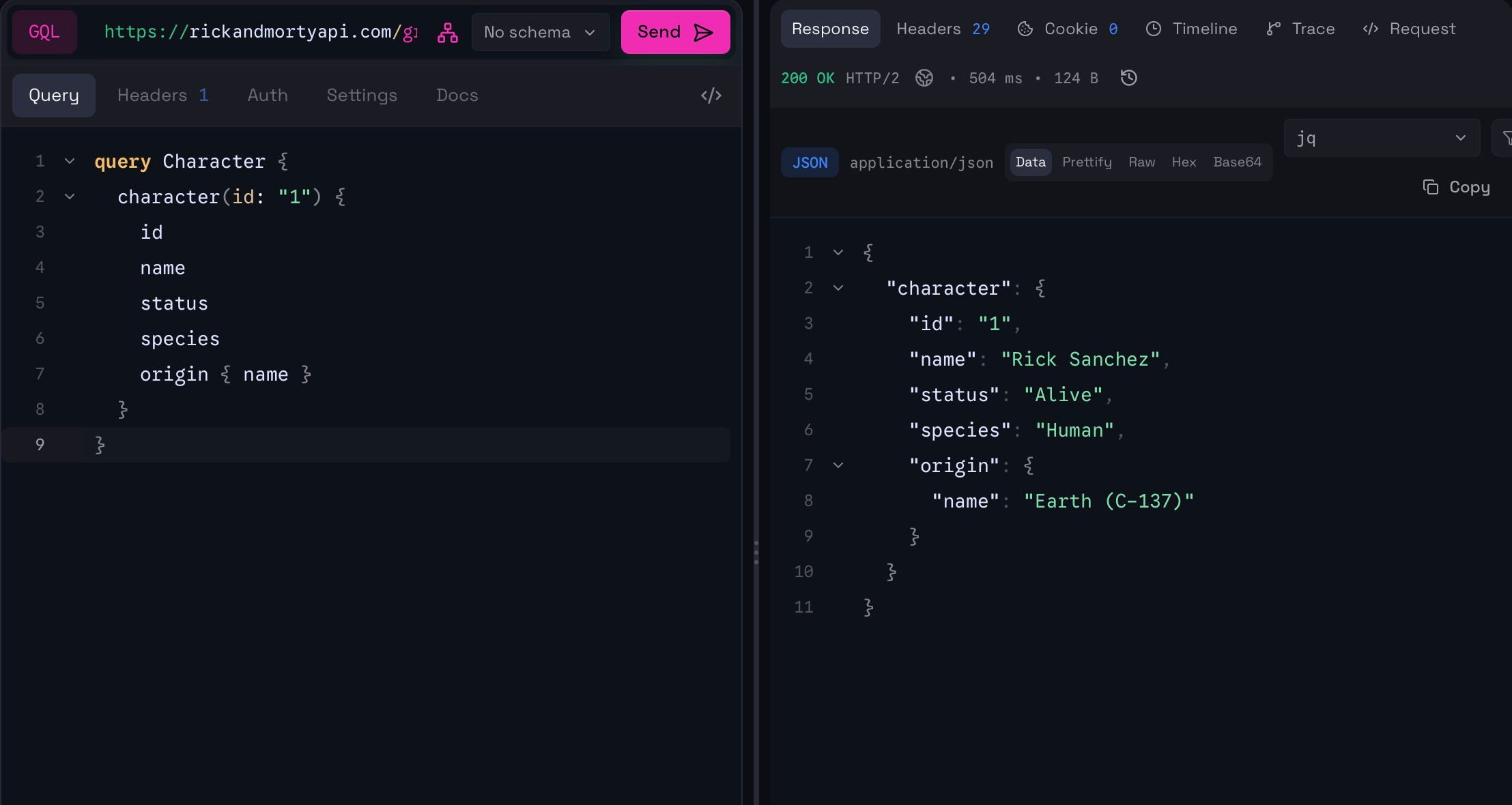
Purr sends the GraphQL document and variables as an HTTP POST. You do not need to construct the HTTP JSON envelope yourself. Request headers and authentication remain available in Headers and Auth.
Without a loaded schema, Purr can still parse the document and identify its operations and declared variables. It cannot offer the same field knowledge, enum choices, or nested input structure. Prefer JSON variables when the schema is unavailable and exact value types matter.
Create a Schema Connection
A Schema Connection is a reusable workspace document describing an API. Creating one in Purr does not create or change the schema on the server.
- Open Create document (+) → GraphQL schema.
- Enter the API’s endpoint in the schema toolbar, for example
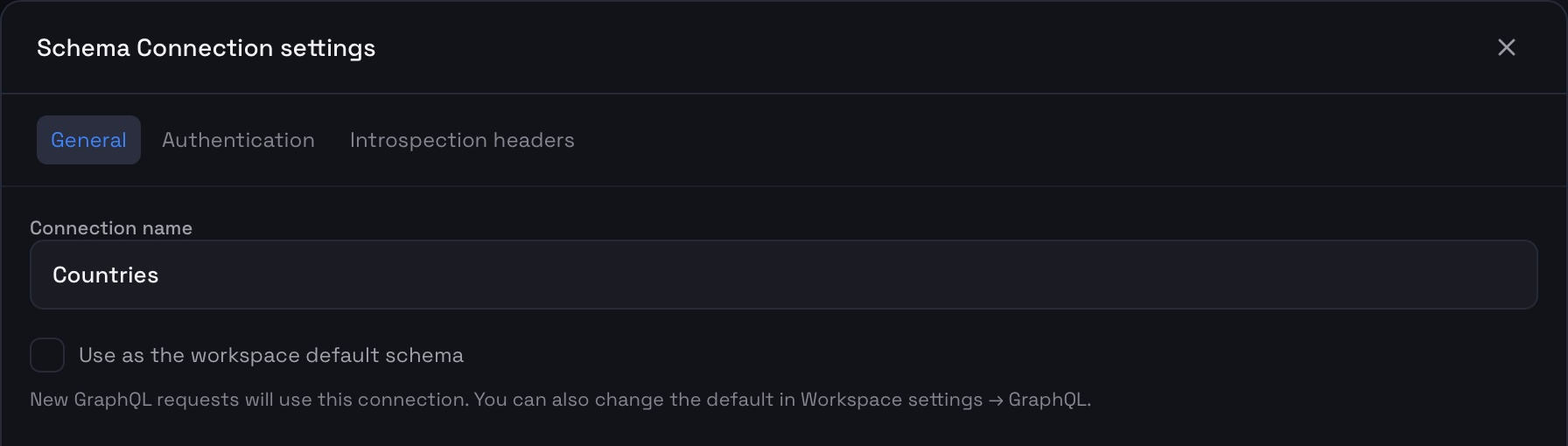
https://countries.trevorblades.com/. - Open Settings and set Connection name to a recognizable name, such as Countries.
- Click Done, then Reload to fetch the schema through introspection.
A successful load shows Loaded, the indexed type count, and an update time. The connection appears under Schema Connections in the sidebar. Repeat with the Rick and Morty endpoint to keep both APIs available independently.
Authentication, headers, and defaults
Authentication configures access to the schema. For a protected endpoint, choose the method required by your API before reloading. Introspection headers supplies headers for schema discovery, such as a tenant or API-version header. These examples need neither credentials nor extra headers.
A request linked to the connection can inherit its authentication; inspect the request’s Auth tab to see or override inheritance. Configure execution-specific headers in the request’s Headers tab. Do not assume a header added solely for introspection is automatically an application request header.
Enable Use as the workspace default schema if new GraphQL requests should start with this connection. You can also select the default in Workspace settings → GraphQL. The per-request selector remains available when working with more than one API.
Refresh or import a schema
Use Reload after the server schema changes. If introspection fails, check the endpoint, credentials, headers, network connection, and whether the server allows introspection.
The source menu in the schema toolbar also supports SDL or introspection file. This is useful when introspection is disabled or a schema file is supplied with the project. An imported file describes types; it does not host the API. Set its Request endpoint in Settings → General before sending requests through that connection.
The toolbar also provides Download schema, a source-pane toggle, and Pin schema SDL to project. The pin controls whether the schema SDL is included in the project.
Explore the schema
Open a connection from Schema Connections in the sidebar. The explorer has three working areas:
| Area | What it shows |
|---|---|
| Type registry | Root operations and groups of object types, inputs, enums, and scalars present in the schema. Search types or fields to narrow the list. |
| Selected item | A type’s fields or an operation’s arguments, return type, and description, where the API provides one. |
| Source pane | SDL for the selection, or an introspection JSON view, with a copy action. Hide it when you need more room for browsing. |
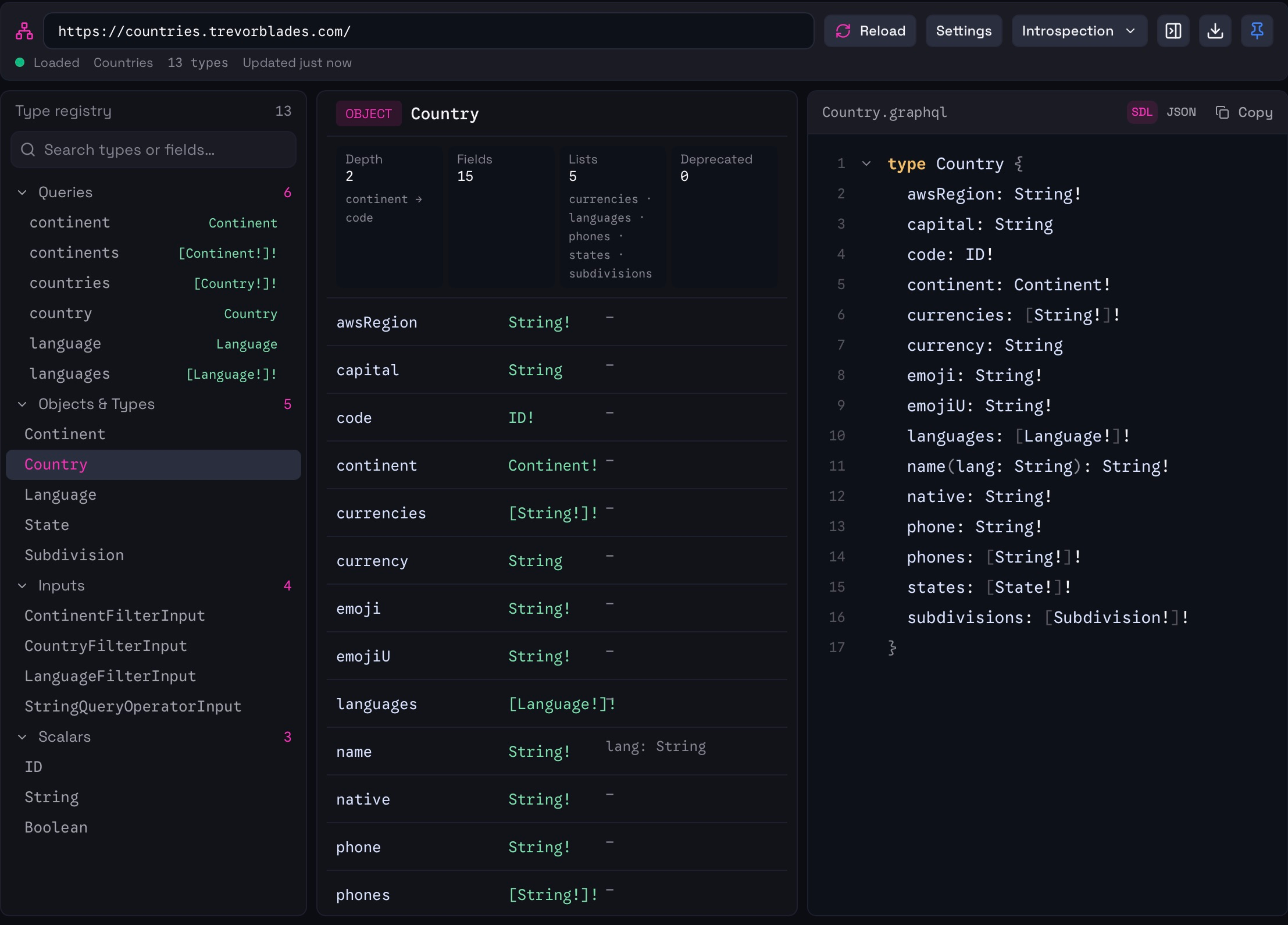
Click Country in the Countries registry to inspect fields such as code, name, capital, languages, and continent. Type names are links: follow Continent or Language to inspect that part of the graph.
GraphQL type notation describes the shape of the data. ID! is non-null; [Language!]! is a non-null list containing non-null language objects. Input types describe values sent to an operation; object types describe returned data.
The explorer shows the operations an API actually exposes. These example APIs expose queries; browsing them does not imply that mutations are available. Rick and Morty’s FilterCharacter.status is a String, even though the API expects meaningful status text. It is not an enum.
Create a request from the schema
The “use this query” workflow is labeled Create request in the current interface.
- Open Rick and Morty in the schema sidebar.
- Under Queries, select characters.
- Review its arguments:
page: Intandfilter: FilterCharacter, and its return type,Characters. - Click Create request. The request action beside a root field is another way to start from that field.
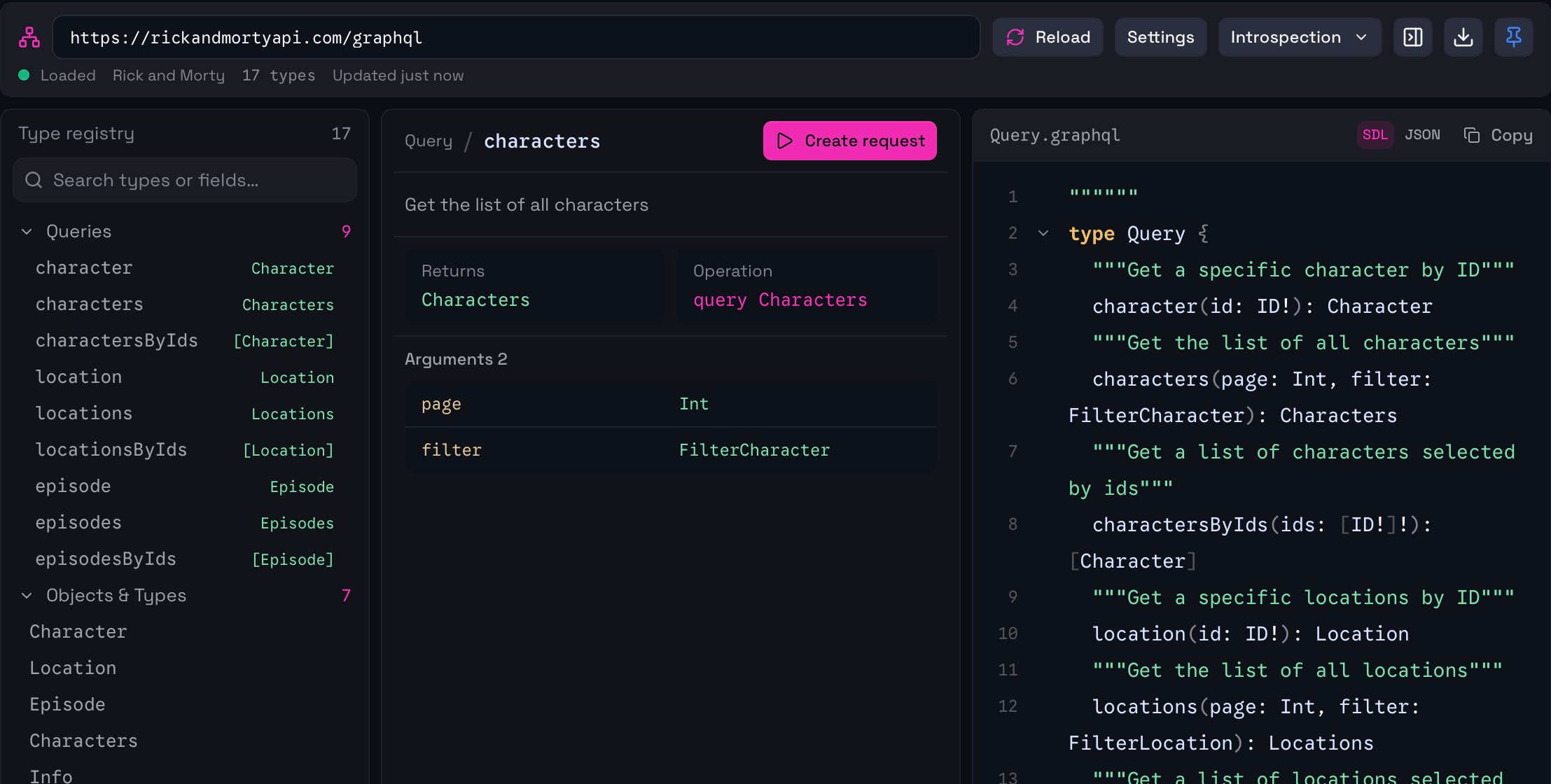
Purr opens a draft with the endpoint and Schema Connection already selected, declared variables for the field’s arguments, and a generated selection. The generated query is a starting point: expand its selection to request the data you need. For a nested return type, the initial selection may contain only __typename.
For example, expand the generated characters query to:
query Characters($page: Int, $filter: FilterCharacter) {
  characters(page: $page, filter: $filter) {
    info { count pages next }
    results {
      id
      name
      status
      species
      origin { name }
    }
  }
}
Fill the variables, send the request, and save it with a useful name such as Characters — filters. The request becomes a reusable document in the workspace; the schema remains a separate connection shared with other requests.
Work within a schema
The selector beside Send links a request to a Schema Connection. Choose Countries for Countries operations or Rick and Morty for character operations. New Schema Connection… opens another path to creating a connection from a request.

When connected, the URL is managed by the Schema Connection. Change the endpoint in the connection rather than editing that request’s URL. The editor status shows Schema connected when the schema is available. Use the schema button beside the selector to return to its explorer.
Selecting No schema returns to an independent request. Check the endpoint and authentication before sending after a connection change: switching schemas does not translate a query from one API into another.
Autocomplete and validation
With a loaded schema, field and argument completion use the type at the cursor. Type inside a selection or press Control+Space to request suggestions. The menu shows field names and types; Fill all fields can populate a selection. Review the result and keep only the fields you need.
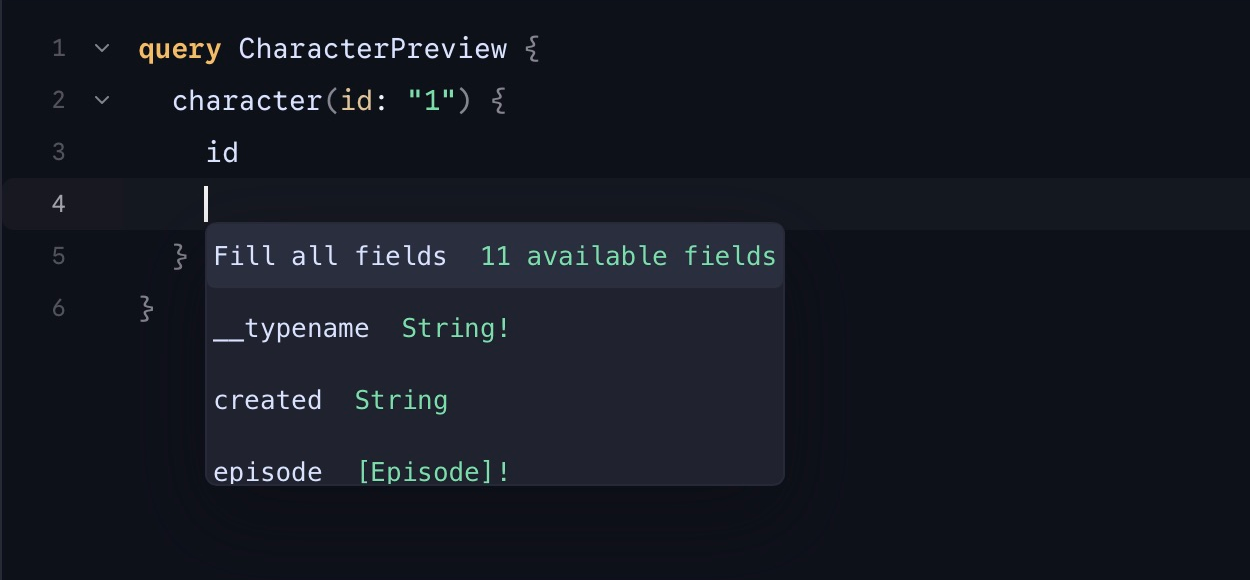
Schema-aware editing also provides type information and documentation where the schema supplies it. An editor warning can indicate an incomplete selection, unknown field, or invalid argument. Finish or correct the query before sending; use Format to make a longer document easier to read.
Multiple operations in one document
Keep related queries in one editor by giving each operation a distinct name. On the Countries connection, this document defines two operations:
query CountryDetails($code: ID!, $includeLanguages: Boolean! = true) {
  country(code: $code) {
    name
    capital
    currency
    languages @include(if: $includeLanguages) { name native }
  }
}

query CountriesByContinent($continent: String!) {
  countries(filter: { continent: { eq: $continent } }) {
    code
    name
    capital
  }
}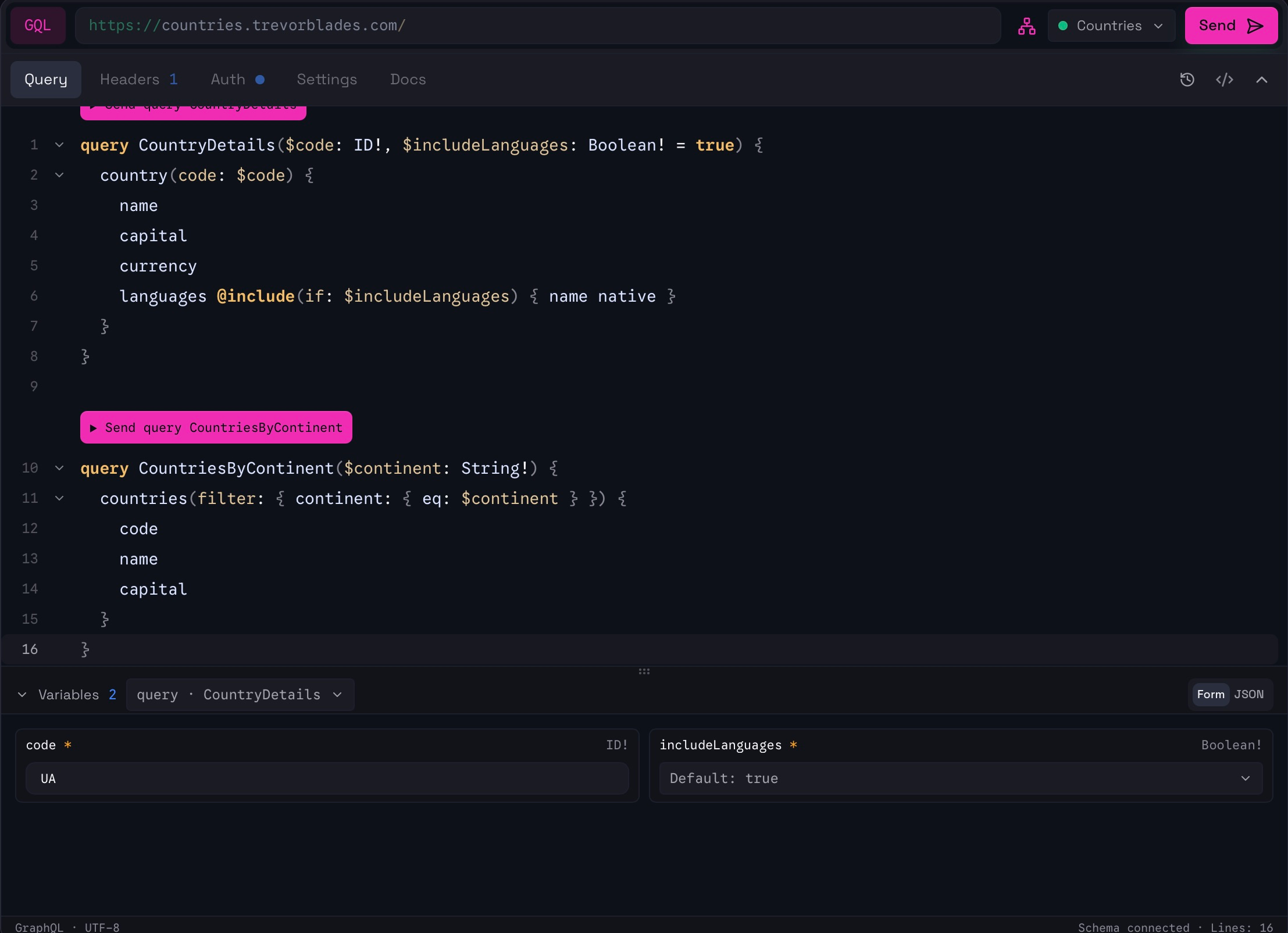
Use Send query CountryDetails or Send query CountriesByContinent above the corresponding operation. Purr sends the document with the selected operation name. A single execution runs one operation, not every query in the editor.
The selector in Variables changes which operation’s fields appear in Form. Choose the operation before entering its variables. The JSON object is shared by the document: switching the displayed operation does not create an independent saved variable set.
For this document, the combined variables can be:
{
  "code": "UA",
  "includeLanguages": true,
  "continent": "EU"
}
CountryDetails returns Ukraine, Kyiv, UAH, and its languages when included. CountriesByContinent returns European countries. Both operations were executed for the examples on this page.
Several fields inside one operation are different from several named operations. A query containing both country(code: "UA") and continent(code: "EU"), each with its own selection set, requests both fields in the same execution. Use distinct named operations when you want separate send controls.
Variables: JSON and Form
Variables keep changing values out of the query text. Declare them in the operation, then set their values in the Variables panel below the editor. Expand or collapse the panel using its heading, and drag its divider to give a larger form more room.
JSON and Form are two views of the same variables. Switching views does not create a second copy.
JSON values
For CountryDetails, use:
{
  "code": "UA",
  "includeLanguages": true
}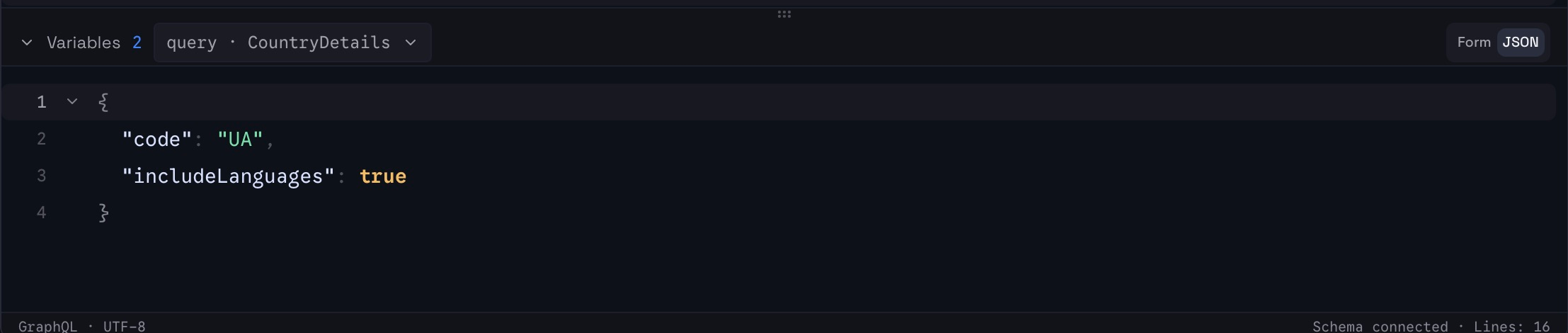
Variables must be a JSON object, not an array or a raw value. Quote property names and string values, and omit comments and trailing commas. A missing property, null, false, and an empty string are different values. Use JSON when you need explicit null, arrays, or exact control over a complex input.
Form fields and selects
With a loaded schema, Form uses the declared GraphQL types:
| Type | Form behavior |
|---|---|
String or ID |
Text input. |
Int or Float |
Numeric value input. |
Boolean |
Select with true and false, plus an unset or default choice. |
| Enum | Select populated with that enum’s schema values. |
| Input object | Nested fields where the schema supplies their structure. |
| List or other complex value | JSON-shaped input; JSON view gives direct control over the complete value. |
For the Countries operation, enter UA in code. The includeLanguages field is a Boolean select:

Choose true to request languages or false to omit that field through @include. Default: true leaves the variable unset so the operation’s declared default is used. For a field without a default, the empty choice is Unset. The ! type marker and asterisk identify non-null variables; a declared default can satisfy an omitted value.
An enum select appears only for an actual enum input. Countries has no enum types in the schema captured here. Rick and Morty exposes CacheControlScope for cache-control metadata, but its character filters use strings. The Boolean example above demonstrates a select available with these APIs.
Nested input objects
The Rick and Morty Characters operation declares $filter: FilterCharacter. With its schema connected, Form expands that object into its fields. Set page to 1, filter.name to Rick, and filter.status to alive.
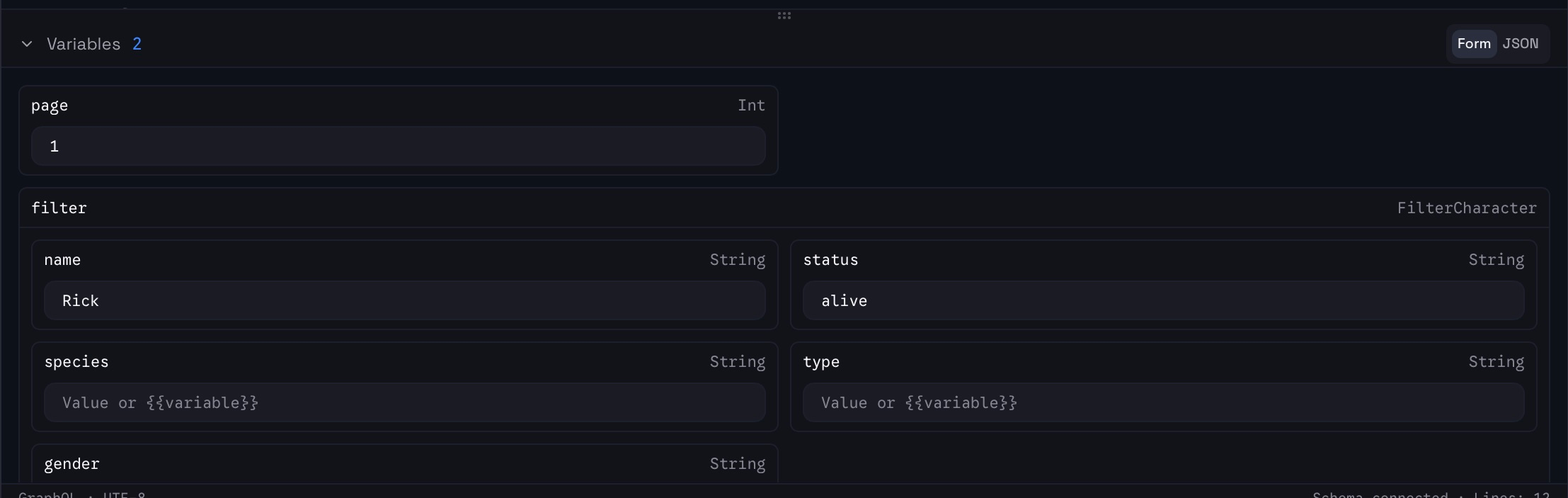
The equivalent JSON is:
{
  "page": 1,
  "filter": {
    "name": "Rick",
    "status": "alive"
  }
}
Leave unused optional fields unset. For pagination, read info.next in the response and use that value for the next request’s page. A null next value means there is no next page.
GraphQL variables are operation inputs. Purr’s workspace and environment variables are a separate mechanism for reusable values such as endpoints or credentials. Form fields also accept Purr variable references where supported; use dynamic variables when a value comes from an earlier response.
Inspect responses and resolve errors
Use Send for a single operation or its operation-level send control for a multi-operation document. Focus Mode can bring the response forward; split layouts keep query and response visible together.
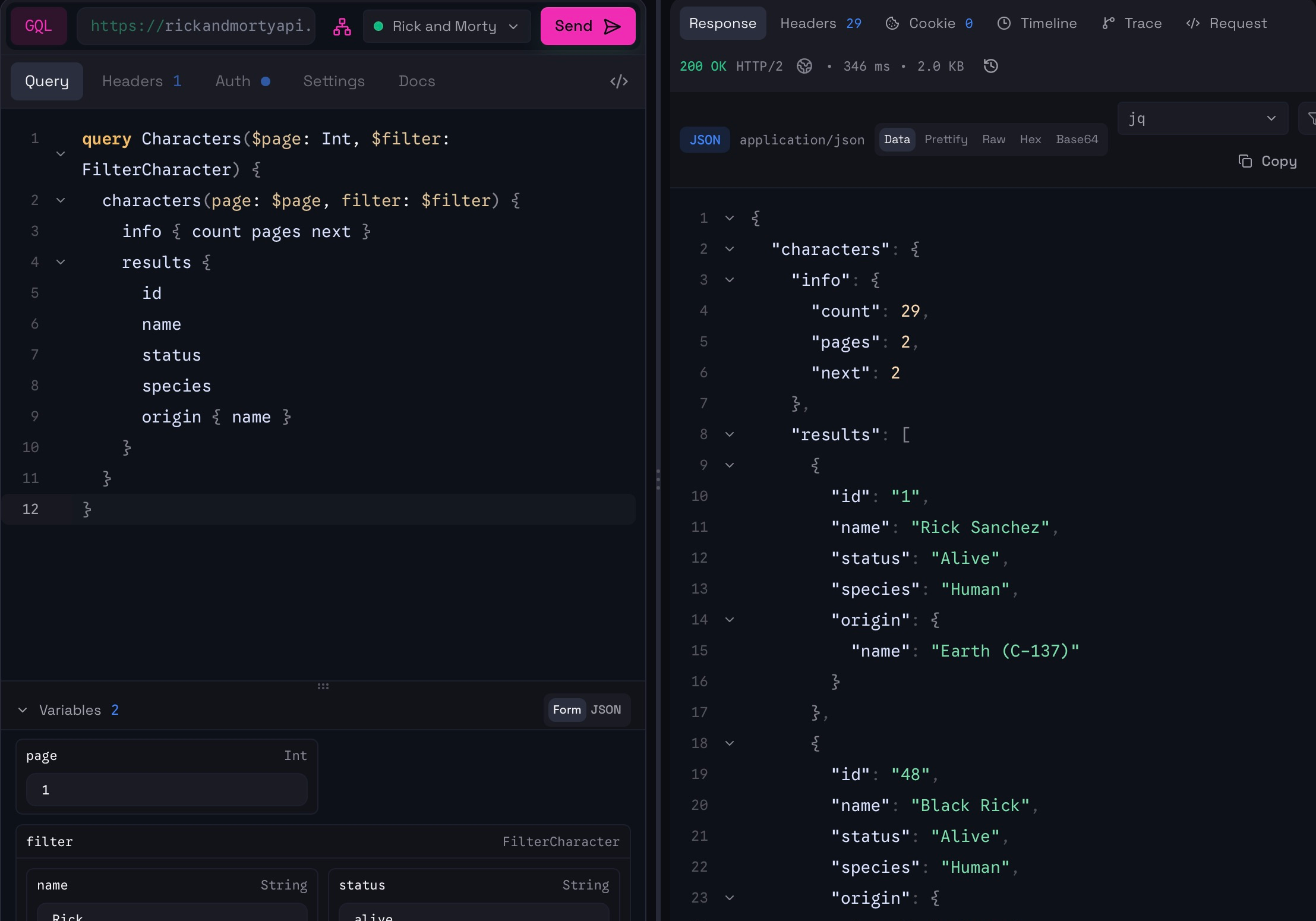
Data and the full server response
The Response tab offers different views of the same response:
| View | What it shows |
|---|---|
| Data | The value inside the GraphQL response’s data field, when present. It unwraps the response envelope so you can focus on the result of your operation. |
| Prettify | The complete JSON response body, formatted for readability, including data, errors, and any extensions the server returned. |
| Raw | The response body as returned by the server, without pretty-printing or extracting data. Use it to inspect the full original body. |
For example, if the server returns {"data":{"country":{"name":"Ukraine"}}}, Data shows {"country":{"name":"Ukraine"}}. Raw retains the outer data object. Response headers are available separately in Headers.
Inspect GraphQL errors
Purr has a dedicated Errors tab for GraphQL errors returned by the server. Its count and the GraphQL errors indicator show how many errors the response contains. Open this tab to inspect individual error cards instead of searching through the response JSON.

Each card displays the server’s error message, followed by the available details:
| Detail | Meaning |
|---|---|
| Path | The response field path associated with the error, when supplied by the server. |
| Location | The line and column in the GraphQL document, such as 1:22. This is not a position in the variables JSON. |
| Code | The server’s error code from extensions.code, when provided as a string. |
| Extensions | Expandable additional error metadata, if the server includes it. |
A dash means the server did not provide that detail. Copy copies the complete individual error object as JSON, including its available metadata.
In the example above, the operation declares a required $code: ID! variable but no value was sent. Select the intended operation in Variables, enter UA in its code form field, or add "code": "UA" to its JSON object while keeping any other required variables. Then send that operation again. Changing the query’s field selection will not fix a missing input value.
An HTTP 200 alone does not prove every GraphQL field succeeded. The server can return both data and errors, leaving some fields available and others null. Use Data to inspect the available result, Errors for individual failures, and Raw or Prettify to see how both appear in the full server response. An HTTP or network failure without a GraphQL errors array is a separate issue; inspect its status and response body as well.
Common problems
| Symptom | What to check |
|---|---|
| Schema does not load | Endpoint, introspection access, schema authentication, and introspection headers. Import SDL or introspection JSON if discovery is unavailable. |
| No field suggestions or a plain variable form | Select the matching connection, load its schema, and check for Schema connected. |
| Unknown field or argument | Verify the selected API and refresh an outdated schema. Countries fields do not exist in the Rick and Morty schema. |
| Missing required variable | Select the intended operation, then fill its required inputs. Check JSON value types and whether a default exists. |
| Wrong operation runs | Use that operation’s Send query control and review the Variables operation selector. |
| Invalid variables JSON | Supply a valid object. In Form, correct the underlying JSON error before continuing. |
| HTTP succeeds but data is missing | Inspect the full GraphQL envelope for errors, check filters, and check conditional directives such as @include. |
Purr’s HTTP GraphQL execution supports queries and mutations when the API exposes them. Subscriptions require a streaming transport and cannot be sent through this HTTP workflow.
Continue with response inspection, workspaces and environments, or Jaeger tracing for an instrumented API you control.